UDISE Plus Student Module 2026-27: Login, SDMS & All Modules – Complete Guide

📋 Table of Contents (click to collapse)
- What is UDISE Plus Student Module?
- Why is the Student Module Important?
- How to Login to UDISE Plus Student Module
- SDMS Portal – State-Wise Login Links
- Sections of the Student Module (GP, EP, SF)
- How to Add a New Student
- How to Update Existing Student Data
- Common Errors and How to Fix Them
- Frequently Asked Questions (FAQs)
What is UDISE Plus Student Module?
The UDISE Plus Student Module is an online system made by the Ministry of Education, Government of India. It is part of the bigger UDISE+ (Unified District Information System for Education Plus) platform.
Schools use this module to enter and manage data about every student. This includes the student's name, date of birth, Aadhaar number, class, enrollment details, and facilities they receive like mid-day meal, scholarship, and textbooks.
In simple words - every student in every government and government-aided school in India is registered in this system.
Why is the Student Module Important?
The Student Module is important for many reasons. Let's understand them in simple words:
- Tracks every student: The government knows how many students are enrolled in each school, each class, and each district.
- Helps in resource planning: If a school has 200 students, the government sends books, midday meal ingredients, and teachers accordingly.
- Prevents dropout: When a student's data is tracked every year, it becomes easy to see if a student dropped out. Then the government can take action.
- Required for scholarships: Many government scholarships require the student's UDISE+ entry to be complete.
- APAAR ID linking: In 2026-27, every student needs an APAAR ID linked to their Aadhaar. This is only possible through the Student Module.
How to Login to UDISE Plus Student Module
Logging into the UDISE Plus Student Module is easy. Just follow these steps:
- Open your web browser and go to sdms.udiseplus.gov.in or visit udiseplus.gov.in
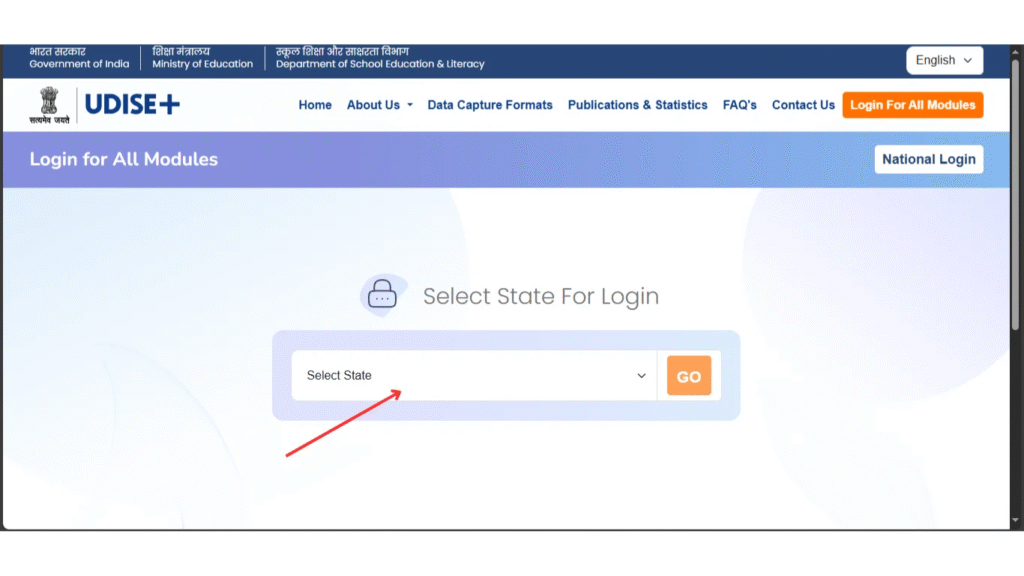
- Click on "Login for All Modules" on the home page
- A new page will open - select your State or UT from the dropdown list
- Click on the "Go" button
- The state's login page will open - select "Student Module"
- Enter your UDISE Code (11-digit) as Username
- Enter your Password (given by Block MIS Coordinator)
- Enter the Captcha code shown on screen
- Click "Login" - you are now inside the Student Module!
SDMS Portal – State-Wise Login Links
Each state in India has its own SDMS login link. Here is a quick table of important states:
| State / UT | SDMS Login Link |
|---|---|
| Uttar Pradesh | Click Here to Login |
| Maharashtra | Click Here to Login |
| Rajasthan | Click Here to Login |
| Bihar | Click Here to Login |
| Madhya Pradesh | Click Here to Login |
| Gujarat | Click Here to Login |
| West Bengal | Click Here to Login |
| Tamil Nadu | Click Here to Login |
| Delhi | Click Here to Login |
| Karnataka | Click Here to Login |
For all states, visit our homepage where all 28 states and 8 UTs SDMS login buttons are available.
Sections of the Student Module (GP, EP, SF)
The Student Module has three main sections. Every student's data must be filled in all three sections.
| Section | Full Name | What to Fill |
|---|---|---|
| GP | General Profile | Student name, gender, DOB, Aadhaar, APAAR ID, caste, religion, parents' details, address |
| EP | Enrollment Profile | Class, section, roll number, admission number, enrollment type, academic year |
| SF | Student Facilities | Mid-day meal, free textbooks, uniform, scholarship, transport, hostel, RTE benefits |
How to Add a New Student
Adding a new student in UDISE Plus 2026-27 is a simple process. Follow these steps:
- Login to the Student Module using your UDISE code and password
- Click on "Add New Student" option on the dashboard
- Fill the General Profile (GP) - name, DOB, Aadhaar number, gender, parents' name
- Generate the APAAR ID by clicking on the Aadhaar authentication button
- Fill the Enrollment Profile (EP) - class, section, roll number
- Fill the Student Facilities (SF) - mid-day meal, books, uniform, scholarship
- Review all details carefully and click "Save & Submit"

How to Update Existing Student Data
To update data of a student who is already in the system:
- Login to the Student Module
- Search for the student by name, Aadhaar number, or APAAR ID
- Click on the student's name to open their profile
- Click "Edit" on the section you want to update (GP, EP, or SF)
- Make the changes and click "Save"
- Submit the updated form before the deadline
Common Errors and How to Fix Them
| Error | Reason | Solution |
|---|---|---|
| Login page not opening | Wrong state selected or server busy | Check your state link, try in non-peak hours |
| Aadhaar not matching | Name/DOB mismatch with Aadhaar records | Check spelling of name and exact date of birth |
| APAAR ID not generated | Aadhaar authentication failed | Use correct Aadhaar, try again or contact BRC |
| Data not saving | All required fields not filled | Check all mandatory fields marked with * are filled |
| Previous year data pending | 2025-26 certification not done | Complete and certify 2025-26 data first |
❓ Frequently Asked Questions (FAQs)
Here are the most common questions people ask about UDISE Plus Student Module 2026-27: Login, SDMS & All Modules – Complete Guide.
✅ Conclusion
The UDISE Plus Student Module 2026-27 is a very important tool for schools across India. It helps schools keep proper records of every student - from enrollment to dropout tracking. By using this module correctly, schools make sure that government data is accurate. This leads to better planning, more resources for schools, and a better future for students. Always keep your UDISE code and password safe, and update student data on time to avoid any issues.